
See the field that needs you.
Flagged fields turn red on the PDF, so you can find the issue in context.
DOCUSIGN MIGRATION Product preview
Your signed agreements. Your reusable templates. The fields you already placed. Bring them into PearSign and keep moving.
Original records preserved. Field issues made visible. A place for everything.
Client services agreement
Customer nameA field needs attention? See a suggested type right where you work.
Illustrative demo. No account connection or import is performed here.
A MOVE FORWARD. LESS STARTING OVER.
Changing your document platform should open a new chapter. PearSign gives your completed work a home and your templates a path back to work.
Bring completed agreements into Documents → Imported. Keep the signed PDF, original completion certificate and audit records together, with the source details one click away.
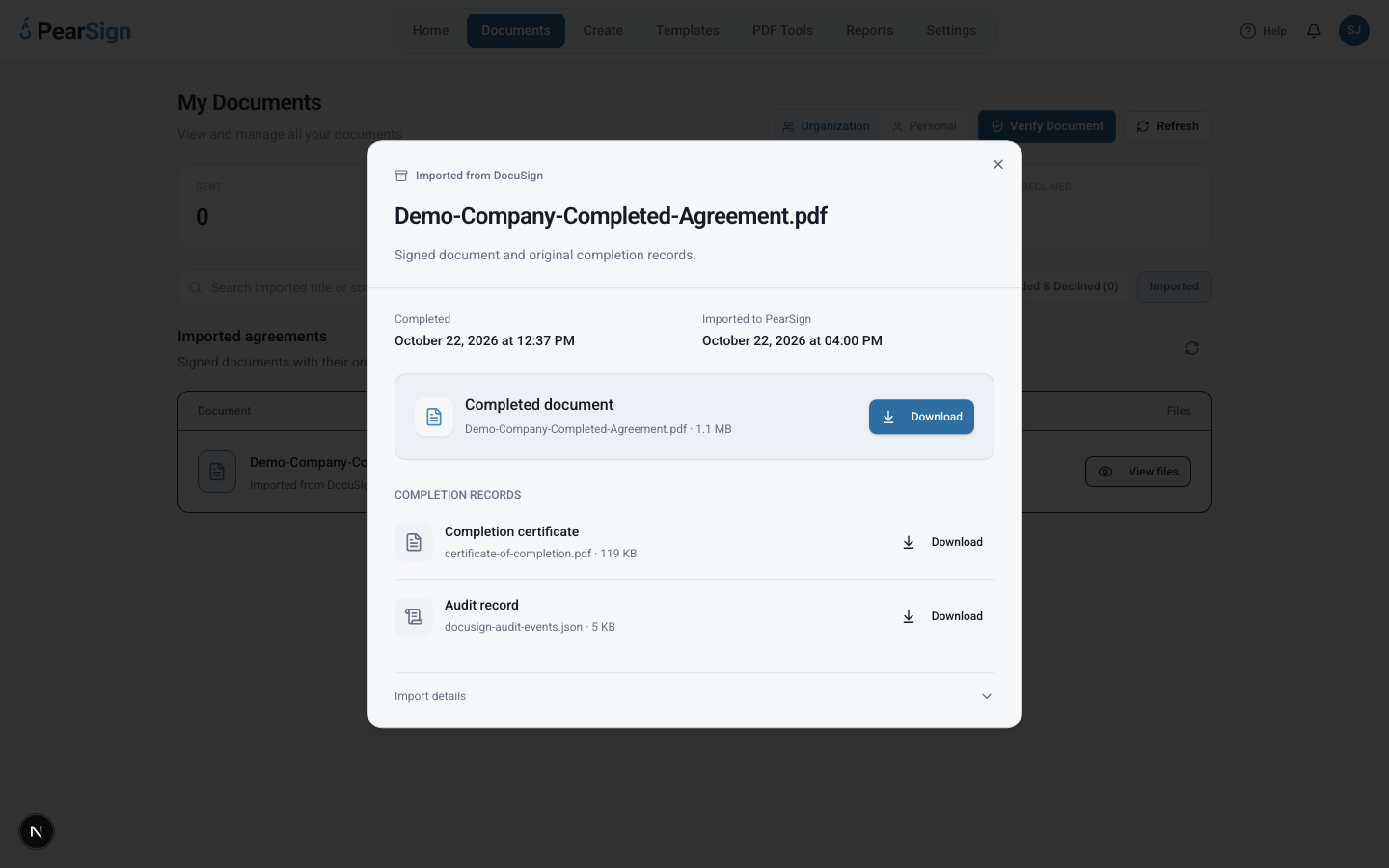
Actual PearSign demo · Fictional company labels
Import your template PDFs, signer roles and supported fields. PearSign maps what it can, flags what needs attention and suggests a close match when one is available.
Some source rules and field behaviors need manual review. You stay in control of the final mapping.
Watch the template walkthroughFlagged fields turn red on the PDF, so you can find the issue in context.
Apply a suggested field type when there is a clear match, or choose the right type yourself.
Confirm the signer, position and behavior. Finish the review, create a draft and activate it in Templates.
SEE THE MOVE, STEP BY STEP
Follow both paths in the real PearSign interface, using Demo Company. Captions guide each step. No audio needed.
Open Settings, then Migration & Archive in your organization.
Authorize an account you can access and choose it in the DocuSign account selector. Private login and consent screens are omitted from the video.
Select Completed agreements, then Browse completed agreements. The included window is the previous 120 days. Select the agreement you want to bring over.
Choose Import selected and keep the page open while processing finishes. PearSign archives the signed PDF and original completion records together.
Open Documents, choose Organization and select Imported. Find the Demo Company completed agreement in the imported list.
Choose View files to access the completed PDF, original certificate of completion and audit record. Expand Import details for source metadata.
The 120-day window controls which historical agreements are included in the import. It is not a retention expiry. The demo shows a one-time $49 USD purchase for older history; normal storage limits apply.
Connect, choose your agreements and find the original files in Documents → Imported.
Download document walkthroughOpen Settings, then Migration & Archive in your PearSign organization.
Choose Browse templates, select Demo Company — Client Agreement and choose Import selected. The source PDF, signer roles and supported fields are imported.
Choose Review mapping, then Open PDF field editor. Fields with mapping issues appear red on the PDF.
Select Customer email. Its unsupported imported type is flagged, and Email is suggested as a close match.
Choose Apply Email. Confirm the Customer signer and Required setting. Check the field, then choose Mark field reviewed. Applying a suggestion alone does not resolve the review flag.
Select Consent. The demo moves it down with Shift+ArrowDown four times, from y=290 to y=330, then marks it reviewed.
Select Service and review the dropdown type and its intended behavior. Its Standard and Express options are retained. Mark the field reviewed.
Choose Next page and select Anchor review. Move it down with Shift+ArrowDown four times, from y=179 to y=219, rename it Additional notes and mark it reviewed.
Select Customer signature. Check the assigned signer, required state, size and placement, then mark it reviewed.
Choose Return to mapping review. With no unresolved mapping issues, choose Create template draft.
Go to Templates → Organization and find Demo Company — Client Agreement. It is now a native PearSign draft.
Open Map Fields, review the corrected template and choose Save & Activate.
The active template has a Use action in Templates. This demo activates only a local fictional template; it sends no signing request.
Review red fields, apply suggested matches and save the finished template to your organization.
Download template walkthroughRecorded in an isolated PearSign demo with a DocuSign developer sandbox. Product preview; contact us about availability for your account.
BRING THE HISTORY THAT MATTERS
The included import window covers agreements completed in the previous 120 days. Older history is available through a one-time migration purchase.
Once imported, your records stay stored as they age. Normal storage allowances apply.
Talk through your migrationBEFORE YOU MAKE THE MOVE
Connect an authorized DocuSign account to select completed agreements or reusable templates. Completed agreements include the signed PDFs, original completion certificate, audit records and source metadata. Templates bring their PDFs, signer roles and supported fields. You can also upload supported exports.
Supported fields map automatically. Fields with unsupported behavior, uncertain placement or other mapping issues are flagged in red. Where a clear match exists, PearSign suggests a field type. Apply a suggestion or choose a field manually, check its signer, size, position and behavior, then mark it reviewed.
Completed agreements appear in Documents → Imported, with organization and personal views controlled by your permissions. After mapping review, templates are added as drafts to Templates. Review and activate them there when they are ready to reuse.
The original downloaded files are retained unchanged and remain available with the imported agreement. Importing does not create a new PearSign completion certificate or mean that PearSign witnessed the original signing.
The included window covers agreements completed in the previous 120 days. Bringing in older history requires a one-time migration purchase. Imported records do not expire when they become older than 120 days. Normal storage allowances still apply.
You choose which visible templates and completed agreements to import. Access depends on the connected account and your permissions. Imports show progress per item while the browser is open; keep the page open until processing completes.
DocuSign is a trademark of its respective owner. PearSign is an independent platform.