
PearSign Web Forms
A simple form.
A new conversation.
Build a contact form, collect quote requests, or ask the questions your business needs. Share it anywhere. Keep every response together.
No PDF required. Start blank or make a starter your own.
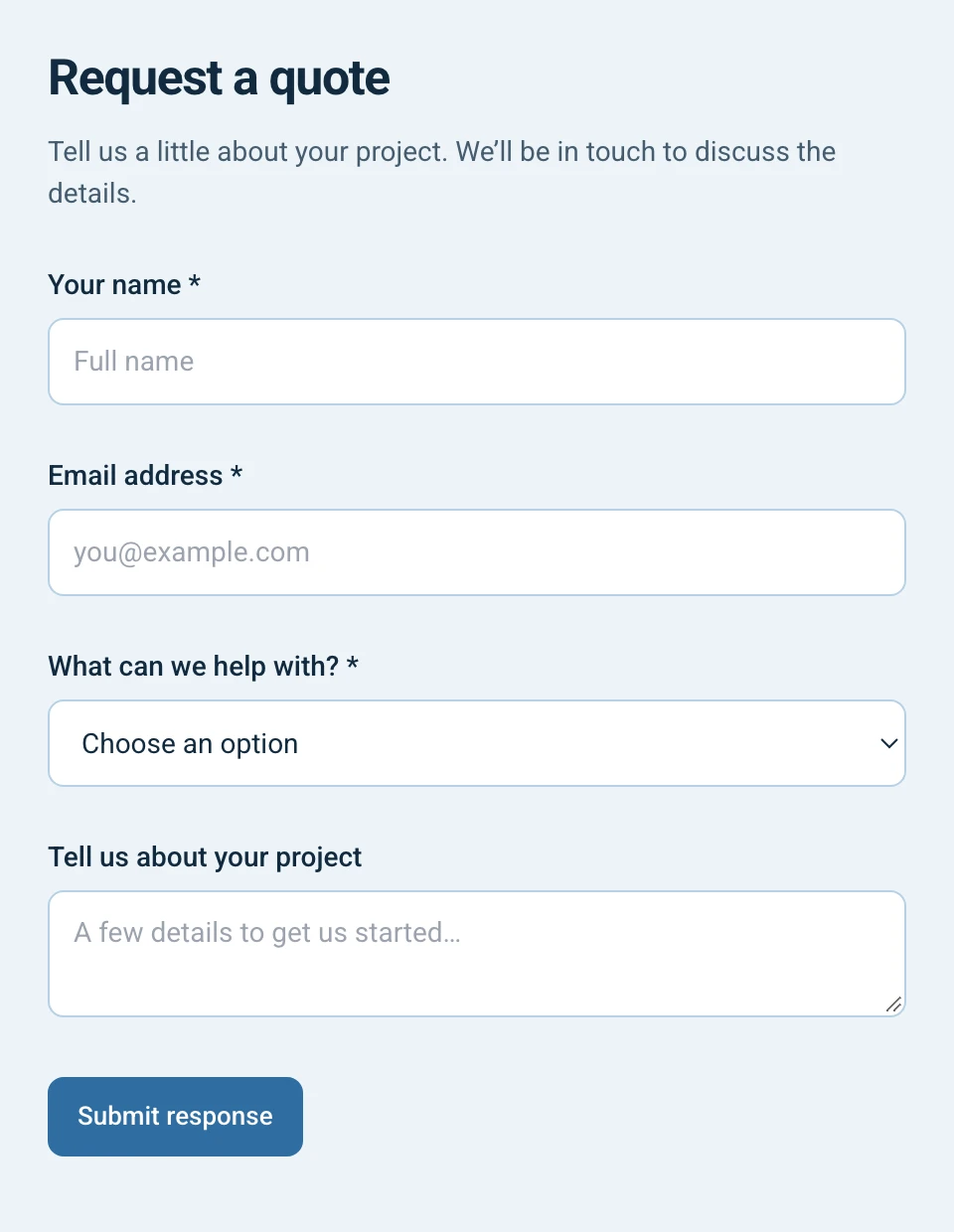
Build it your way
Click or drag fields into place.
Put it within reach
Share a link or embed on your website.
Bring responses together
Review answers, files and exports.
01 / Make it yours
From an idea
to a form.
Start with a blank canvas, Contact us or Quote request. Click to add a field, drag it into place, and edit the question. Preview on desktop and mobile before publishing.
Blank form
Your idea, from the first question.
Contact us
Give visitors a way to get in touch.
Quote request
Collect the details to start a conversation.
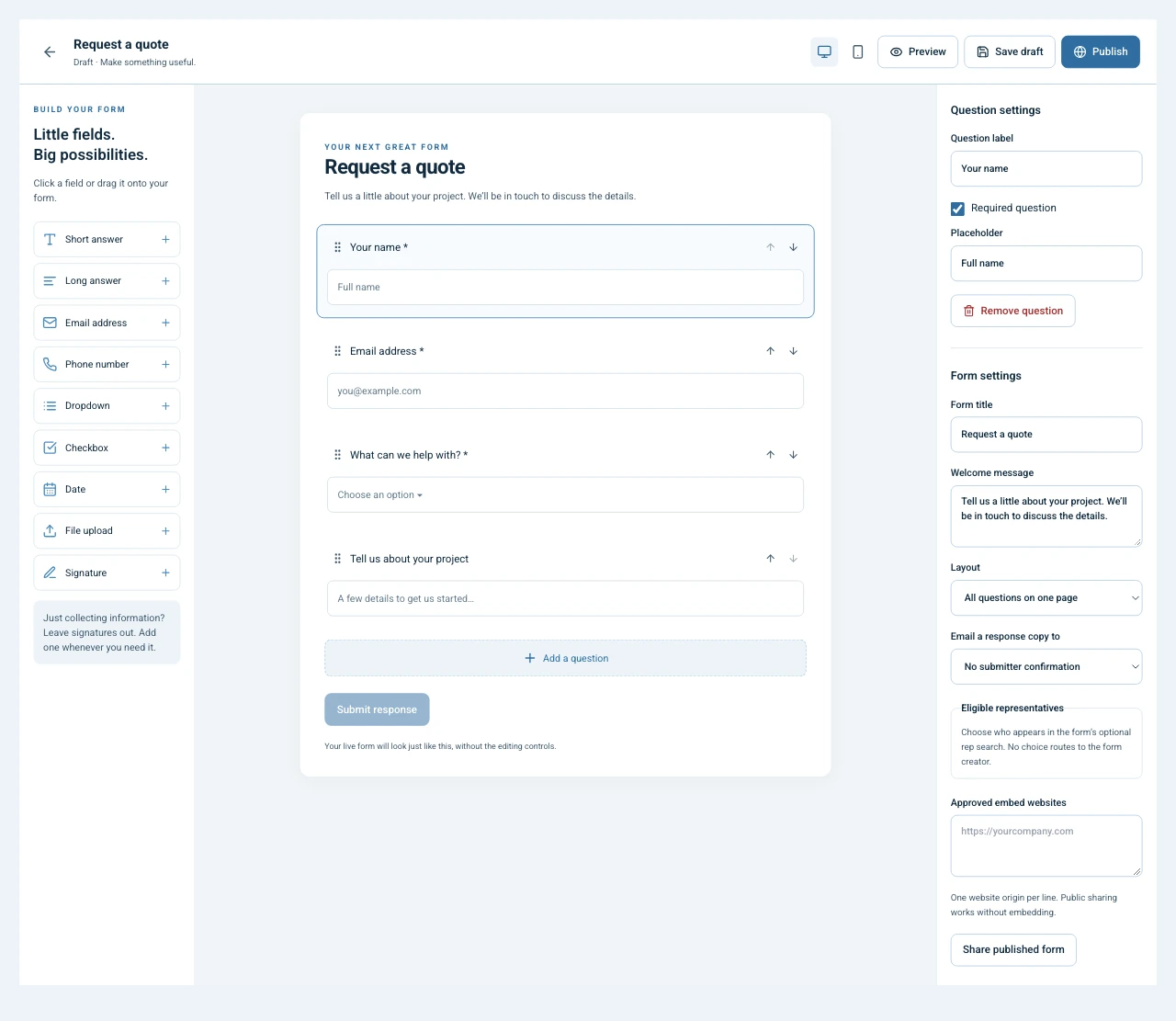
Short and long text, email, phone, dropdowns, checkboxes, dates and private uploads. Add an optional typed acknowledgment when you need one.
02 / Open the conversation
A link to share.
A place on your site.
Publish once and share your public form link. Or embed the form on an allowed website so visitors can respond where they already are.
- Choose a single page or a guided layout.
- Preview the desktop and mobile experience.
- Keep draft changes separate until you publish.
- Pause when you’re ready to stop collecting responses.
03 / Follow up with context
Every response.
Ready to work with.
Bring answers and uploaded files into one inbox. Route responses to the owner or an eligible team representative, with notifications and optional submitter confirmation.
One response inbox
Read submissions and access their private files together.
A complete CSV export
Export all matching responses for your next step.
A readable PDF summary
Download a response as a document that’s easy to review.
Already have a PDF?
There’s a workflow for that, too.
Web Forms start with questions. FusionForms and guided applications start with your PDF and its fields. Keep using them for document-based fill-out and signing.
A few useful details
Before you build.
Do I need a PDF to start?
No. Web Forms are standalone forms. Start blank or choose the Contact us or Quote request starter, then add your own questions.
Can I put a form on my website?
Yes. Publish a form to get a public share link, or embed it on the websites you allow. You can pause a form to stop new submissions.
What can people upload?
PDF, PNG, JPEG and TXT files, with a combined limit of 5 MB per response. Uploaded files stay private in the response inbox. Each form supports up to 60 fields.
Does the signature question create a signed agreement?
The optional signature question captures a typed acknowledgment and explicit adoption consent. It does not create an audited signing envelope or a certificate of completion. For document signing, use PearSign’s electronic signature workflow.
How is this different from FusionForms?
Web Forms collect responses without a source PDF. PDF-based FusionForms and guided applications start with a document and its fields. Choose the workflow that fits what you need to collect or sign.
Start with a question
Make your next form
a PearSign Web Form.
Create a form Sign in or create an account to get started.